Contents
Introduction
Compatible with Airtec AXS and AXM Model Smart OBM Scales
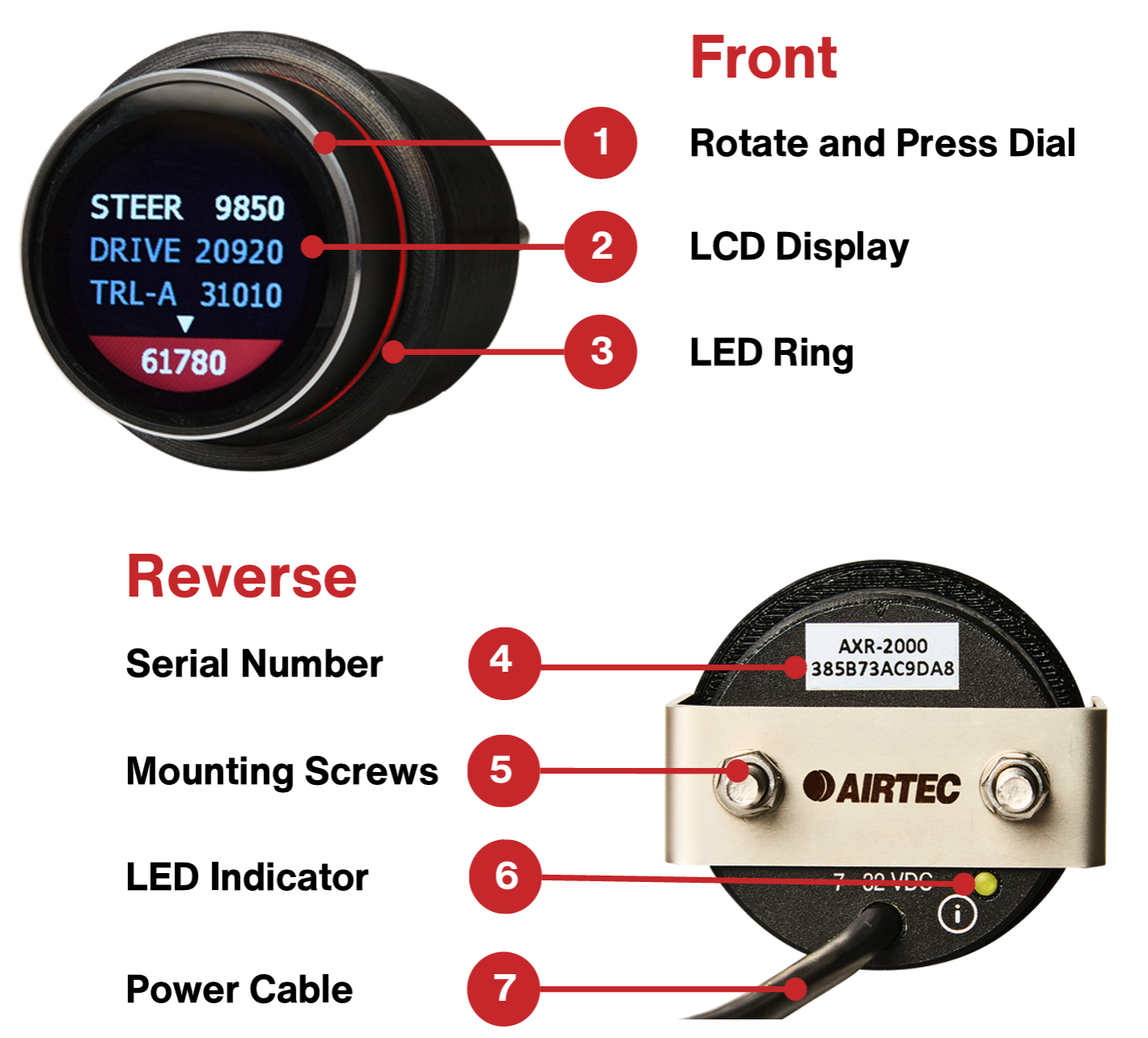
The AXR In Cab LCD display can be integrated with our AXS Truck Scales to remotely display multiple weight readings in addition to the GCM on one screen. To cycle through the weights of each axle group from inside the cab, simply rotate the outside ring of the display to explore the list of connected scales, with the Gross Combination Mass (GCM). The AXR in Cab LCD display features a durable ASA Plastic body, along with a scratch resistant LCD screen. The display is a vibrant, interactive screen that remains clearly visible day or night. The display can be easily mounted inside the cab into a 52mm gauge mounting hole on the dashboard or at a suitable vantage point with a range of mounts available to suit your needs.
Specifications
Electrical
Voltage
7 - 32VDC
Power
Typical Average 80 mA @12V DC
Protection
Reverse and Over Voltage Protection
Mechanical
Materials
ASA Material
Dimension
56Wx56Hx60D mm 56Wx56Hx80D mm (including screws)
Display
1.3” Liquid Crystal Display RGB LED Light Ring Rotate and Press Dial
Environmental
Operating Temperature
40 to + 85°C
Dust and Water Resistance
Communication
Wireless
Bluetooth 5.3
Wired
RS232
Product Overview
Installation & Mounting
Installation must be carried out by an authorised technician
Wiring The AXR has a one metre power cable with two wires.
Connect the wires to fused power on ignition.
Black = Ground | Brown = 7-32VDC
Gauge Hole Mounting
1.Remove the dashboard trim or panel around the gauge hole.
2.Position the LCD in-cab display in the gauge hole.
3.Attach the mounting bracket to the AXR through the gauge hole.
4.Secure the AXR and bracket to the dashboard.
5.Connect the wires to fused power on ignition.
6.Reattach the dashboard trim.
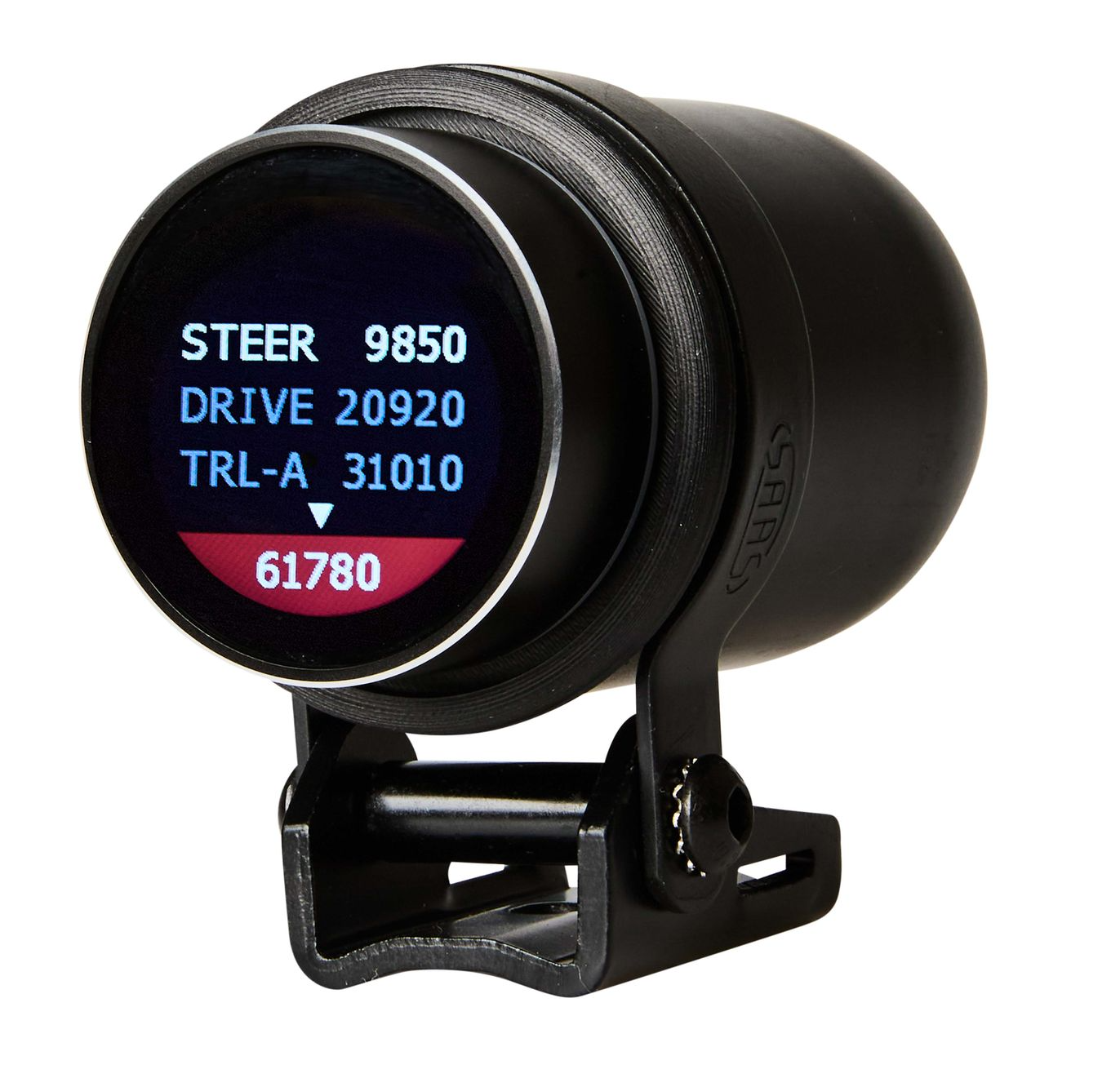
1.Attach the adhesive foam to the AXR.
2.Feed the AXR cable through the small hole at the back of the mounting bracket (AMK-5306).
3.Press the AXR into the mounting bracket.
4.Mark mounting holes and drill holes for mounting if necessary.
5.Screw the bracket to the dashboard.
6.Connect the wires to fused power on ignition
Operations
When the AXR In-Cab LCD Display is powered on, it will automatically search for the nearest truck scale to pair with. Once connected, the display will show the axle group mass of the combination.
How to turn the AXR display on and off
- The AXR display will turn off if unused for 5 minutes or if the display is held down for 3 seconds.
- Press the display to turn it back on.
- The timeout period is adjustable using our SmartOBM app
- How to change your axle group
- Rotate the display to cycle through the axle groups of the vehicle combination.
Status Indicator
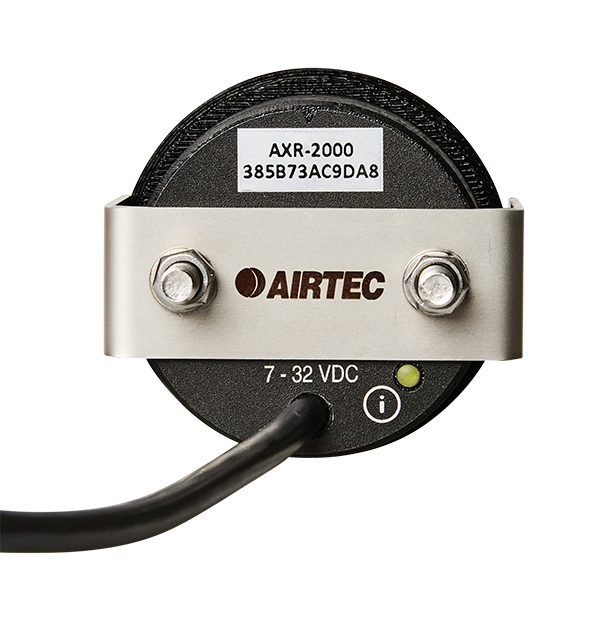
The AXR-2000 features an LED status indicator (you will find this on the reverse side of the unit) with distinct colour patterns for each operational state:
- Solid Red = Device powered on
- Flashing Red = Device is actively scanning for a connection
- Solid Green = Successful connection has been established
- Flashing Green = Device is connected and transmitting data
Checking Connection in SmartOBM App
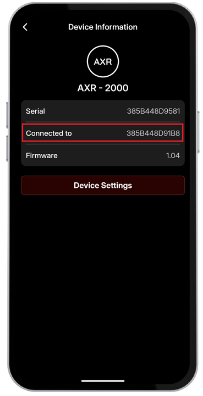
- Tap the filter icon, select AXR, then tap Filter again.
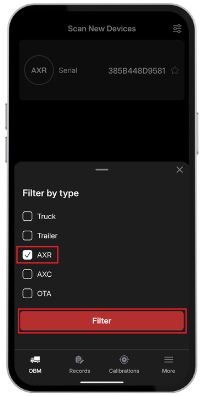
- Tap the device and confirm Connected to matches the AXS on your truck.