Contents
Tutorial Video
How to Download
Open the App Store (iOS) or Google Play Store (Android).
Search for SmartOBM and tap Get (iOS) or Install (Android).
Wait for the download and installation to complete, then open the app.
Allow permissions for Bluetooth, location, and nearby devices to ensure full functionality.

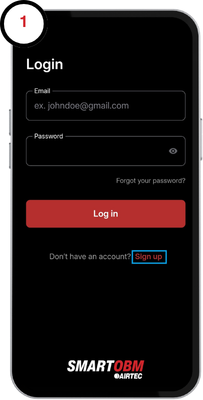
Create an Account
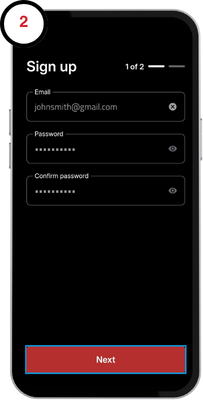
2. Enter a valid email address and matching passwords., then tap Next.
3. Type in your name, mobile number and the name of your business or fleet organisation. Select Create Account once finished.
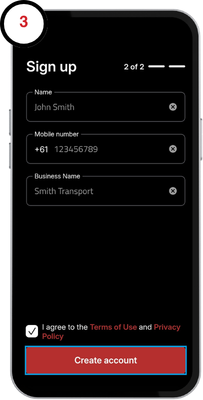
4. You will receive a 2FA code by text message. Enter this code into the app and tap Verify Now to access the app.

Scanning for New Devices
The Scan New Devices page is where all of your Bluetooth Airtec devices will be listed. From here you can select a device to connect to it and view your weights.
1. Open up the SmartOBM app on your mobile device. The app will automatically start scanning for devices configured as trucks/prime movers.

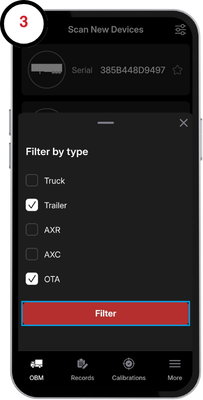
2. To scan for a different configuration, tap the filter icon in the top-right corner.
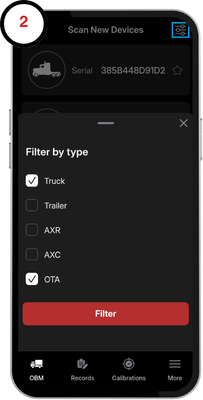
3. Select the device type you want to include in the scan. Scanning for a trailer includes dolly scales too.
Favourites Feature
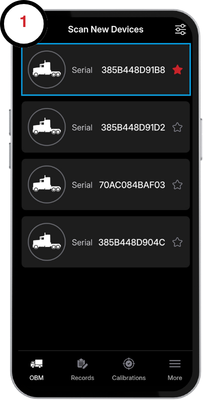
The favourite feature in the SmartOBM app allows you to easily find your device in a yard of trucks. Once favourited, your device will always appear at the top of the list when you open the app. This makes it easy to find without scrolling through multiple devices.
1. Find your device and tap the star icon in the top-right corner of its tile to mark it as a favourite.

Registration and Fleet Number
The SmartOBM App lets you assign a vehicle’s registration and fleet number to a device, replacing the need to use the device’s serial number.
To update these details:
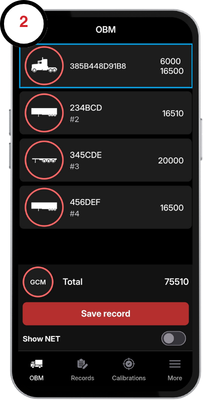
1. Tap on the device you want to assign a registration and optionally, a fleet number too.
2. Tap on the asset again to open the Vehicle Info page.
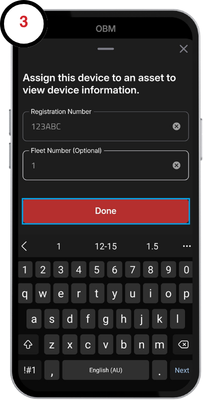
3. The pop-up will appear asking you to enter the vehicle registration and (if required) the fleet number. Enter the details and tap Done.
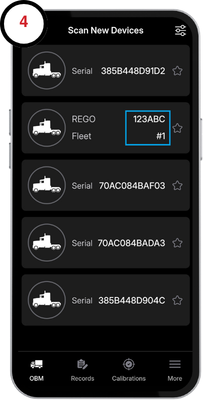
4. The device serial number will now be replaced with the registration and fleet number, making it easier to identify your asset in the app.
View and Save Weights
The View and Save Weights page is where you can see the current weights for your connected devices. From here, you can also save weight records to keep a history of your readings for easy tracking and reference.
1. Scan for available trucks and tap your truck to open the OBM page.
2. View the weights for each axle group here. The devices must be scanned into the lead vehicle to display the full combination on screen. Refer to AXS - Scan Modes for more information.
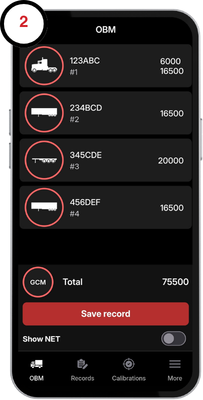
3. Tap Save Record to capture the weights, location, date, and time.
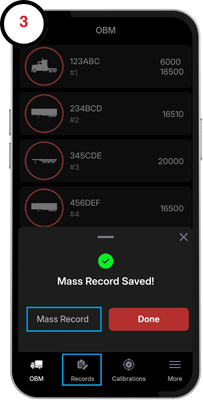
4. Select Mass Record or the Records tab to view saved entries (newest at the top).